
Health Connect guide · verified July 13, 2026
Health Connect Duplicate Steps and Workouts: 7 Fixes
The quick solution: identify which apps write the same data, assign the correct priority for Activities and Sleep, break any synchronization loops, and only then delete the incorrect copies. Steps and workouts are not handled in the same way: this guide shows exactly where to intervene.
TL;DR
- Health Connect deduplicates Activity and Sleep aggregate totals using the order under Data sources and priority; records from different apps can still remain visible separately.
- Duplicate workouts need a separate check: the same session often arrives through a direct connection and then returns through Health Connect.
- Before deleting anything, open Recent access and inspect individual entries to identify which app wrote each copy. If you do not stop the writer, the data can return.
- Removing an app from aggregate totals does not revoke its write permission. To stop new records, change that app's permission for the affected data type.
- FitMesh reads Health Connect's aggregate step total and reconciles sources in its dashboard. Health Connect write-back is optional and off by default: it can add FitMesh-owned records, but it does not edit or delete records written by other apps.
First distinction: duplicate records do not always mean a duplicate total
Health Connect preserves each record's origin: the source app, device, time interval, and recording method. Two apps can therefore each show a Steps entry for the same interval without necessarily doubling the displayed total. According to the Android aggregate-data documentation, the Aggregate API deduplicates Activity and Sleep data according to the user's source priorities. The original entries remain attributed to their respective sources.
This distinction prevents the most common bad advice: deleting everything as soon as two records appear. First determine whether you are seeing multiple source entries, an inflated total, or a complete workout duplicated as a second session. Each problem has a different fix.
| Symptom | Most likely cause | First action |
|---|---|---|
| Two Steps entries, but a plausible total | Records from multiple sources; aggregation is already applying priority | Check priority instead of deleting blindly |
| Step total is almost doubled | An app reads and writes the data back, a source is misconfigured, or the final app sums raw records | Identify the writer and break the redundant path |
| The same workout appears twice | A direct integration plus an import through Health Connect | Keep one inbound path to the destination app |
| The duplicate returns after deletion | The source retains a copy and writes it again | Revoke write access first, then delete the bad record |
| Health Connect is correct, but another app shows double | That app reads raw records or combines a second integration | Fix the sources inside the app displaying the total |
Seven-step procedure to remove duplicates without losing data
1. Open Health Connect from the correct path
On Android 14 and later, open Settings → Security & privacy → Privacy controls → Health Connect. On Android 13 and earlier, Health Connect is a separate app available from Google Play and can also be opened through Settings → Apps → Health Connect → Open. Labels can vary slightly by manufacturer, but the relevant sections are App permissions, Data and access, Recent access, and Manage data.
2. Find which app wrote each copy
Open Recent access → See all recent access to see which apps read or wrote data during the last 24 hours. Then open Data and access, choose the category and data type, and select See all entries. Health Connect identifies the source of each record. Google's official guide to finding Health Connect data confirms that you can inspect individual entries and app permissions before changing anything.
3. Set source priority for Activity and Sleep
Open Manage data → Data sources and priority, choose Activity or Sleep, and drag the preferred app to the top. Google states that when values from different apps conflict, the app higher in the list receives priority. You can also exclude a source from aggregate totals without deleting its stored records; see Manage your Health Connect data.
Check steps recorded by the phone itself
Since June 2026, compatible devices running Android 14 or later can have Health Connect record steps directly from the phone's step sensor. The phone appears as a separate source and has the lowest priority by default. To exclude it, open Health Connect → Devices → phone name → Steps and turn off step tracking, or remove the phone from Activity totals. Google documents both phone-step attribution and the controls available to users.
4. Revoke only the redundant write permission
If an app should no longer publish steps or workouts, open App permissions → app name and turn off write access for that data type. Do not revoke every permission automatically: an app may need to read steps without writing them back. Google's connected-app permissions guide distinguishes revoking access from deleting data that is already stored.
Removing an app from "Data Sources and Priorities" merely excludes it from the total of the category. The app can still write. Disabling the write permission, on the other hand, prevents new records but does not delete existing ones. These are three distinct operations: priority, permission, and deletion.
5. Break the loops between direct integration and Health Connect
The typical duplicate-workout problem is a sync loop: service A sends a session directly to service B, while the same session also reaches Health Connect and B imports it again. Another loop occurs when an app reads a record from Health Connect and writes it back as though it were new. The practical rule is simple: keep one inbound path for each destination and data type.
| Path | Risk | Recommended Configuration |
|---|---|---|
| Wearable → app companion → Health Connect | Low, if there is a single writer | Keep the official writer active |
| Service A → service B and A → Health Connect → B | The same workout is imported twice | Disable one of B's two inbound paths |
| A bridge reads Health Connect and writes the data back to Health Connect | A loop creates a record with a new origin | Do not use Health Connect as both source and destination for the same flow |
| Two wearables record steps during the same period | Overlapping records | Set Activity priority; deleting a source is not always necessary |
6. Remove the erroneous copies only after stopping the source
Health Connect lets you delete one entry, an entire data type, a category, a time range, or all data written by a specific app. The safest path is Data and access → category → data type → See all entries, then delete only the confirmed bad copy. For a broader cleanup, use App permissions → app → Delete app data and choose the affected period.
Google's official deletion instructions warn that the source app or device may retain its own copy. Deleting a record from Health Connect does not automatically remove it from the manufacturer's cloud. If the writer remains active, that copy can sync back.
7. Force a new synchronization and verify the final total
Open the source app first, wait for it to complete the wearable synchronization, then reopen the reading app. Check Recent Access and individual entries again. For Activity and Sleep, the aggregated total updates when you change sources or priorities; for workouts, ensure there is only one session and that duplicates are not recreated.
Why steps can be correct while workouts remain duplicated
Steps are cumulative data that can be read through the Aggregate API, where Health Connect applies source priority to Activity totals. A workout is instead a session with a start time, end time, exercise type, optional route, and related records. Two apps can create separate sessions describing the same run, each with a different identifier and origin.
For developers, Android recommends a stable `clientRecordId`. If the same app retries the same record, Health Connect can ignore the duplicate or update the existing version. This prevents retry duplicates from one integration, but it does not prove that records from two different apps describe the same activity. Android documents the distinction in its guide to workout experiences with Health Connect.
A
Duplicate from the same writer
- •The same app retries an upload
- •A stable `clientRecordId` can make the operation idempotent
- •The app developer is responsible for the primary fix
B
Duplicate from different writers
- •Two apps import the same activity through different paths
- •Origins and identifiers do not match
- •The user must remove the redundant path, or the destination app must reconcile the sessions
How FitMesh handles overlapping sources
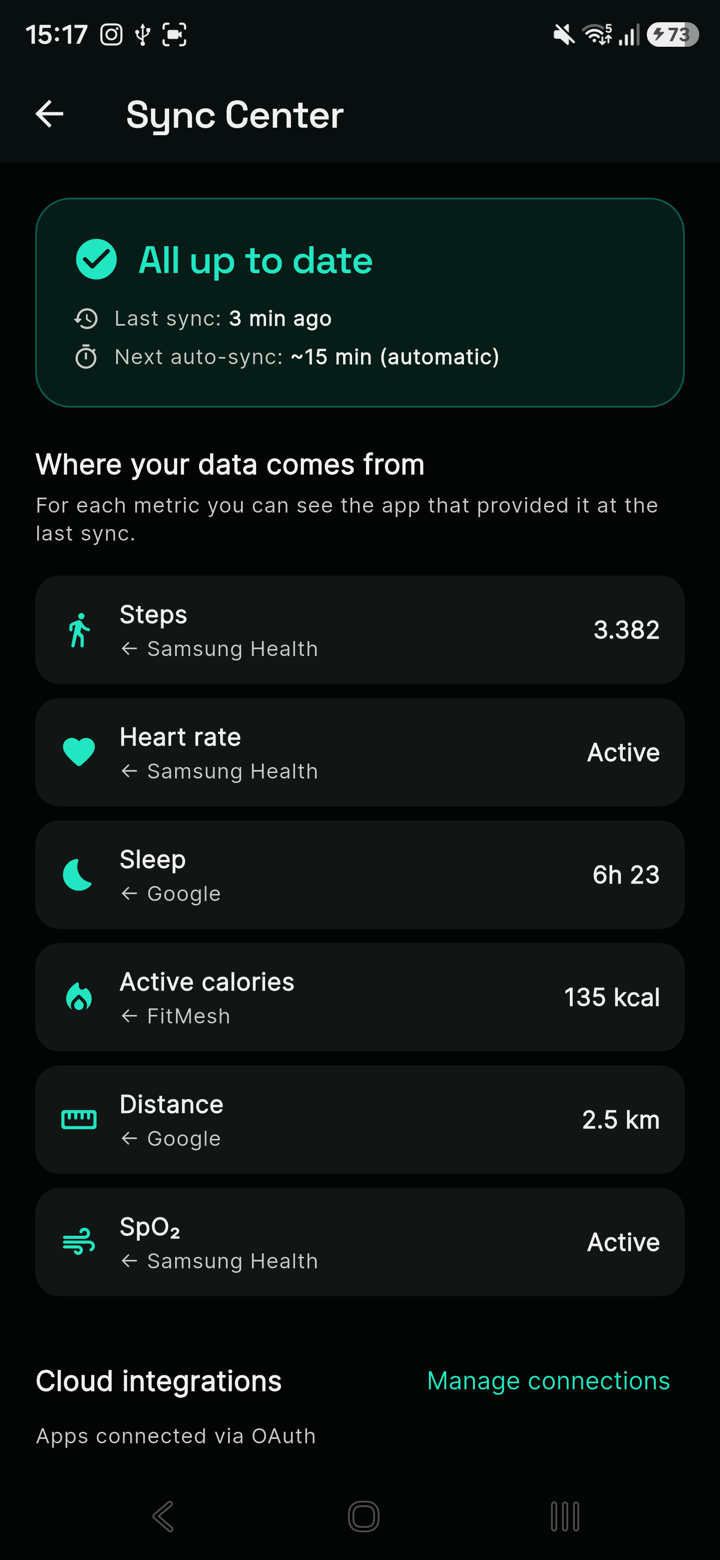
On Android, FitMesh reads steps through Health Connect's native aggregation, so the result benefits from the user's Activity source priority. For other data, it applies controls in its reading and dashboard layers: removing identical records, selecting a source for cumulative metrics, reconciling overlapping sleep sessions, and removing cross-source workouts with the same start time, end time, and exercise type.
FitMesh can therefore show a coherent view even when Health Connect still contains records attributed to multiple apps. It does not, however, clean the Health Connect database for every other application. If another app still displays a duplicate, correct the source priority, write permission, or sync path at its origin.
| Data | First layer | FitMesh control |
|---|---|---|
| Steps | Health Connect aggregate total | Cross-check against cumulative records and scale the intraday timeline to the final total |
| Sleep | Available records and aggregates | Group overlapping sessions and select the preferred source |
| Workouts | Session origin and time interval | Remove sessions with the same start, end, and type; take overlapping metrics from one source |
| Heart rate and other point-in-time metrics | Records from authorized sources | Priority or source selection for each metric |
Checklist for preventing duplicates with multiple wearables
- Choose a primary source for Activity and one for Sleep.
- Let a single companion app write each type of data when a secondary copy is not needed.
- Avoid having an app bridge use Health Connect as both the source and destination for the same data simultaneously.
- When you directly connect two services, disable the equivalent import through Health Connect in the target app.
- Check Recent Access after every new integration.
- Before changing permissions, note the configuration and save any important exports.
- After making the change, verify both the individual items and the total displayed by the app you are actually using.
Sources and verification status
Last verified: July 13, 2026. Primary sources: Health Connect aggregation and priority, data-source management, data and Recent access inspection, connected-app permissions, data deletion, and workout-session records. Statements about FitMesh were verified against the app repository rather than inferred from marketing material.
Frequently asked questions
Does Health Connect automatically remove duplicate data?+
Health Connect deduplicates Activity and Sleep aggregate totals according to the user's source priorities. Original records from several apps can remain visible separately. Do not assume the same behavior for workouts or every other data type: you may need to break a redundant sync path or use an app that reconciles multiple sources.
Why do I see two workouts but the total steps are correct?+
Steps can be deduplicated in the Activity total through the Aggregate API and source priority. Workouts are separate sessions: the same activity can arrive through a direct connection and through Health Connect with different origins, producing two sessions even when the aggregate step total is correct.
Does removing an app from source priority stop it from writing?+
No. Removing a source from the Activity or Sleep totals prevents it from contributing to those totals, but the app can still write. To stop new records, you must revoke the write permission for that data type in App Permissions.
Can I delete only one workout or incorrect entry?+
Yes, for fitness data Health Connect allows you to open a data type, view all entries, and delete a single record. You can also delete by interval, type, category, or app. Stop the app that wrote the duplicate first; otherwise, it might publish it again.
Why does duplicate data return after I delete it?+
Deletion removes the record from the local Health Connect database, but the source app or service may retain a copy. If write permission or the connection remains active, the next sync can recreate that record.
Does FitMesh remove duplicates within Health Connect?+
It does not delete or edit records written by other apps. FitMesh shows a reconciled dashboard; if you enable Android write-back, it can add and replace only FitMesh-owned records with anti-loop controls. To correct duplicates created by other sources, manage priority, permissions, and deletion in Health Connect settings.
Can I use two smartwatches without counting steps twice?+
Yes. In Health Connect, set the most reliable source at the top of the Activity priority and verify that there is no rewrite loop. Apps reading the total aggregate should honor that priority; apps reading raw records must apply their own reconciliation logic.
Disclaimer
FitMesh Sync is an independent product. Google, Android, Health Connect are trademarks of their respective owners. This article implies no affiliation or sponsorship.
Medical disclaimer
The information in this article is for informational purposes only and does not replace advice from your physician, pharmacist or healthcare professional. FitMesh Sync is a fitness/wellness app, not a medical device, and does not diagnose or treat any conditions. For symptoms, clinical questions or treatment decisions always consult your primary care physician.
Written by
Matteo Pizzi
Founder & Solo Dev, FitMesh Sync · Fosforonero
Italian software developer. I built FitMesh Sync to fill the gap between my smartwatch and a real personal dashboard. Privacy-first, indie.
More about the projectKeep reading
Guide
Health Connect not syncing: 7 fixes that work (2026)
Disappearing steps, missing sleep data, heart rate not updating. Here's how to diagnose and fix the most common Health Connect problems.
Guide
How Health Connect works: the complete guide for Android
Health Connect is not just an app: it's the data exchange layer that lets all Android health apps communicate. Here's what it actually does, how it manages your permissions, and what happens when something doesn't work.
What's New
Now you know which device each metric comes from
Watch, ring and other devices in one screen, with a clear label of which one measured what. One view, no double counting.